

File Structure Generation
Vibemap generates a complete, framework-standard file structure for your project based on your selected architecture and generated features. This ensures that your project is organized following industry best practices from day one, making it easy for developers to navigate and maintain.
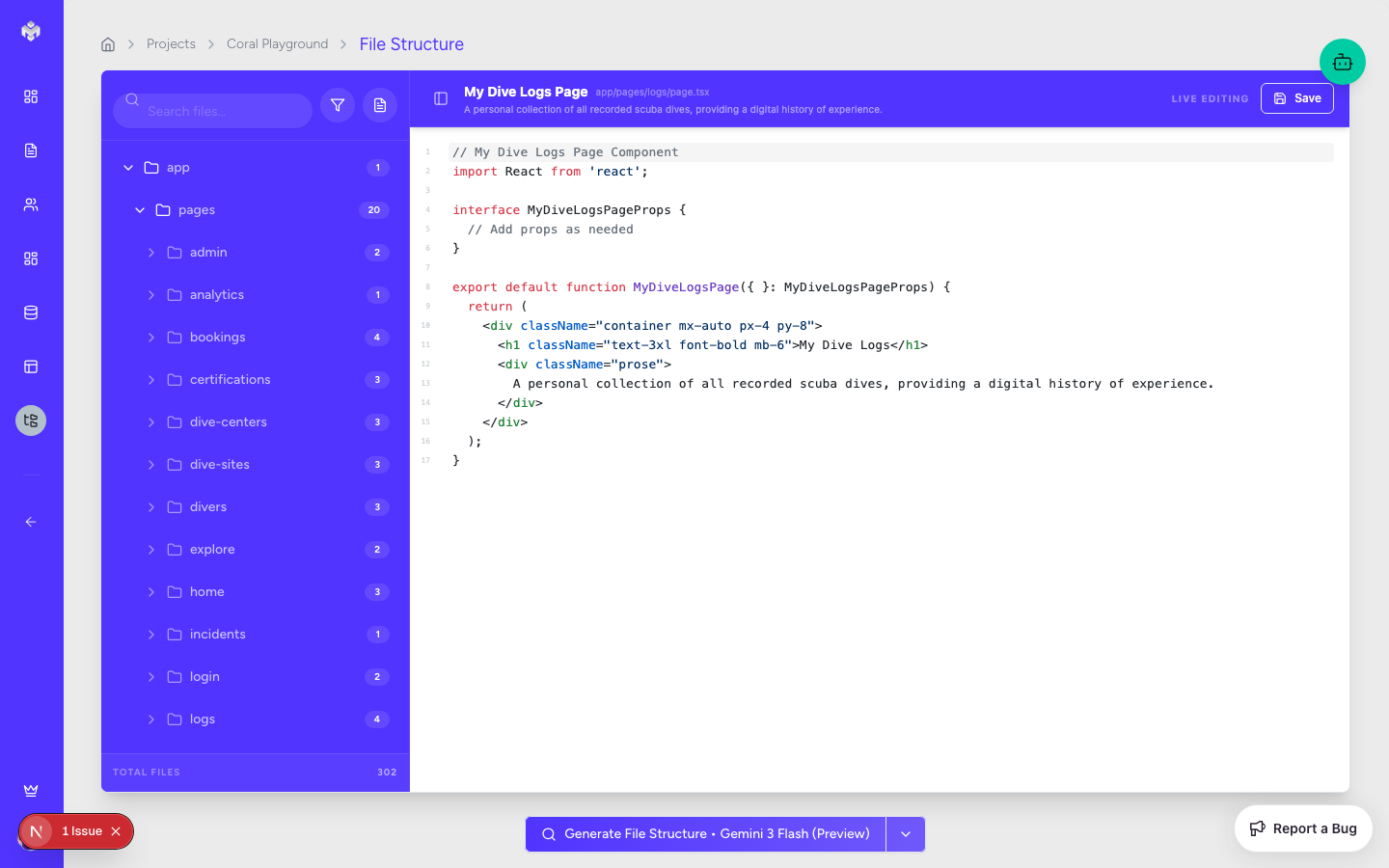
Accessing File Structure Section
Navigation
Navigate to the project sidebar.
Click the "File Structure" tab.
If no structure has been generated yet, you'll see a primary "Generate File Structure" button.
Page Layout
File Tree: A hierarchical explorer on the left (or top) that shows the directory structure.
Detail Panel: Displays metadata for the selected file or folder, including its purpose and technical role.
Preview Area: Shows the initial code or pseudocode generated for a specific file.
Generating File Structure
The Generation Process
Click the "Generate File Structure" button.
The AI analyzes your Features, Pages, and Database Schema.
It maps these requirements to a standard architecture (e.g., Next.js App Router).
A full directory tree is created, including all necessary configuration and boilerplate files.
What Gets Generated
Directory Hierarchy: A complete folder structure (e.g.,
app/,components/,lib/,hooks/,types/).Framework Configuration: Files like
package.json,tsconfig.json,next.config.js, and.env.example.Feature Modules: Specific directories for each of your core features, grouping related logic together.
Infrastructure Code: Database connection utilities, API clients, and authentication middleware.
File & Folder Categories
Vibemap organizes files into logical categories common in modern web development:
Pages/Routes: Defines the URL structure and main view components.
Components: Reusable UI elements, subdivided into
ui,forms, andlayout.Hooks: Custom React hooks for shared state and side effects.
Services/Lib: Core business logic, API wrappers, and utility functions.
Types/Interfaces: TypeScript definitions for data models and API responses.
Tests: Placeholder directories for Unit, Integration, and E2E tests.
Interactive File Explorer
Navigating the Tree
Expand/Collapse: Use the arrows next to folders to explore the hierarchy.
Search: Use the search bar to quickly find a file by name.
File Metadata: Selecting a file displays a "Purpose" description, explaining what logic should live in that file.
Manual Customization (CRUD)
While the AI provides a comprehensive scaffold, you can manually refine it:
Add File/Folder: Manually create new directories or files to suit niche needs.
Rename: Change file names to match your internal naming conventions.
Delete: Remove files or folders that aren't necessary for your specific MVP.
Framework-Specific Best Practices
The generated structure automatically adapts to your chosen architecture:
Next.js (App Router): Uses
layout.tsx,page.tsx, andloading.tsxpatterns.Supabase: Includes
supabase/migrationsand a centralizedlib/supabase.tsclient.Tailwind: Includes
tailwind.config.jsand a global CSS entry point.
Next Steps
Once the file structure is finalized, you can proceed to Pseudocode Generation to fill these files with logical outlines, or use the Technical Export to download the complete scaffold to your local machine.
Last updated
Was this helpful?