

Initial Personas Generation
Personas are the foundation of your project requirements. Vibemap uses AI to identify the target audience for your application and creates detailed profiles for each user type, ensuring that every feature you generate later serves a specific user need.
Accessing Personas Section
Navigation to Personas
Navigate to the project sidebar.
Click the "Personas" tab.
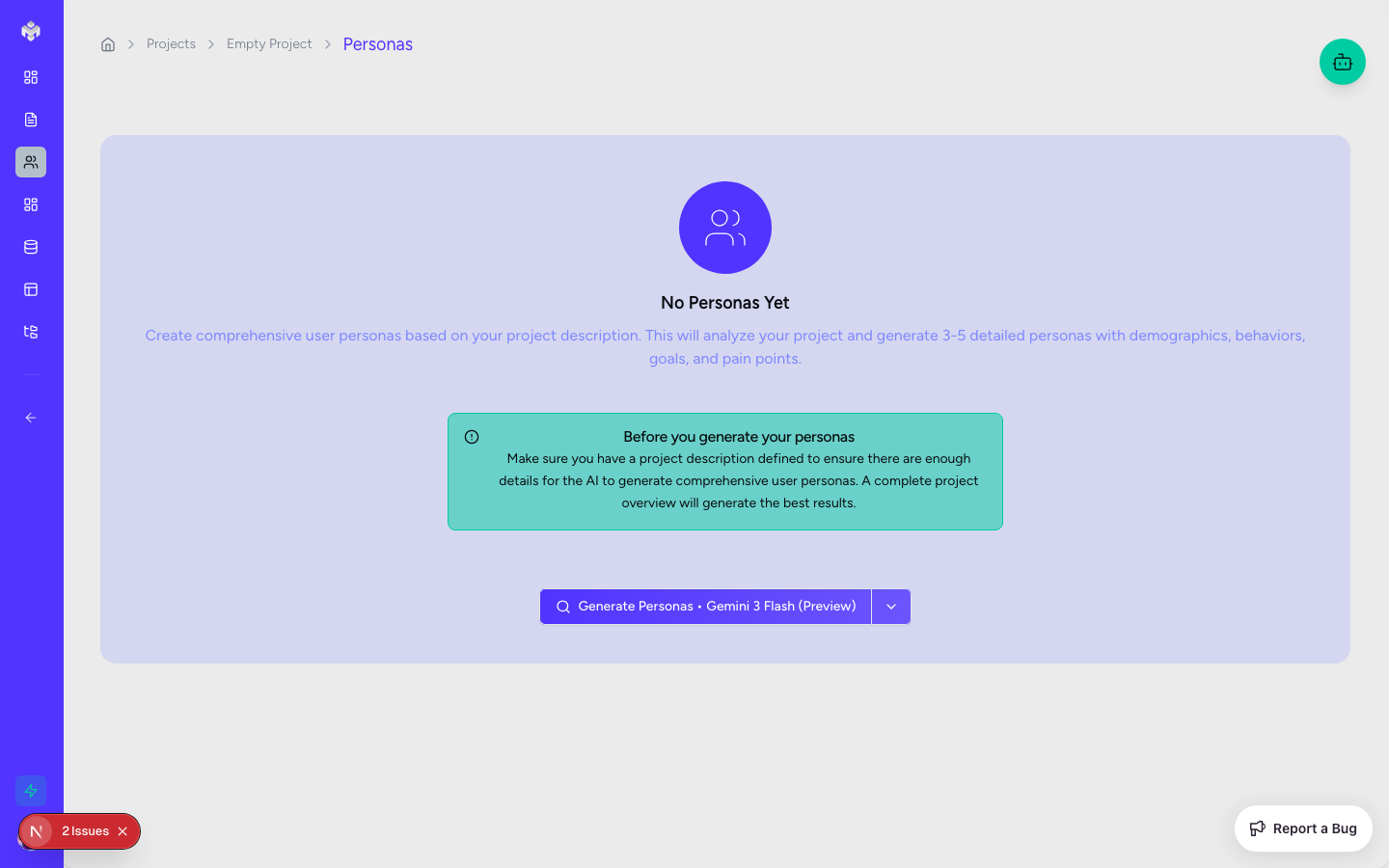
If this is your first time here, you will see an empty state with a "Generate Personas" button.
Personas Page Layout
Header Section:
Title: "User Personas"
Generate Button: Primary CTA for AI-driven persona generation.
Add Persona Button: Allows for manual persona creation if you have specific users in mind.
Content Area:
Role Tabs: Filter personas by their user role (e.g., Admin, Customer, Vendor).
Persona Cards: Individual displays for each user profile.
Empty State: Displays when no personas have been generated or added yet.
Generating Initial Personas
Personas Generation Process
Click the "Generate Personas" button in the empty state.
The AI subagent analyzes your project name and the detailed description you provided during project creation.
Real-time generation progress is displayed as the AI identifies roles and populates details.
Detailed profiles including demographics, goals, and pain points are created and appear as cards.
What Gets Generated
Vibemap doesn't just give you a name and a title. Each persona includes:
Primary User Types: The main user groups essential for your MVP.
Demographics: Suggested age range, location, and occupation to humanize the user.
Goals and Motivations: What the user hopes to achieve using your app.
Pain Points: The specific problems or frustrations your application should solve.
Behavior Patterns: Typical ways this user interacts with similar products.
Technology Usage: Tech comfort level, preferred devices, and communication channels.
Individual Persona Card Structure
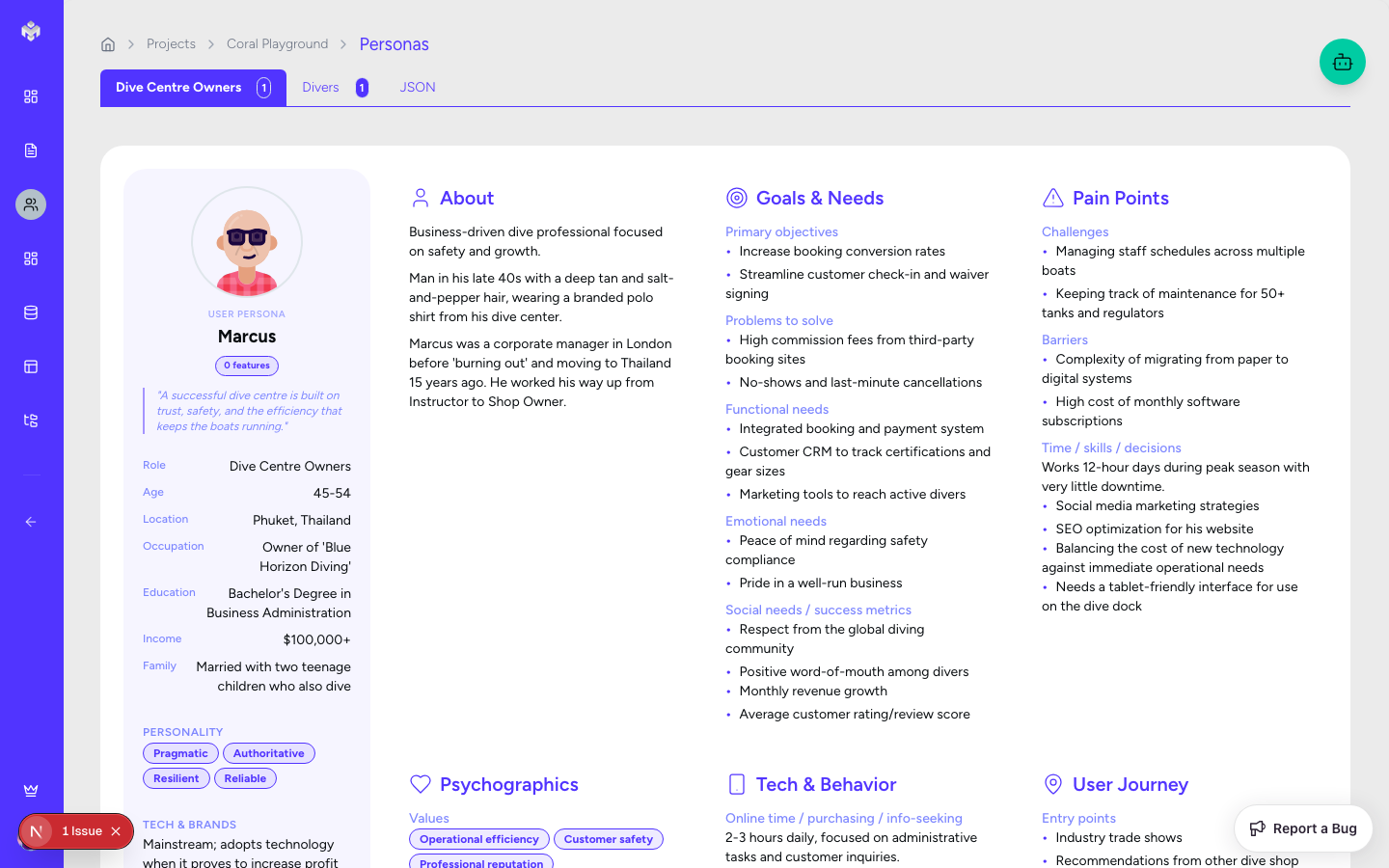
Each persona card is a comprehensive profile of a specific user type.
Visual Elements
Avatar: An AI-suggested avatar description or placeholder image.
Name & Role: A representative name and their primary role within the system.
Demographics: Quick-glance age, location, and occupation info.
Detailed Fields
Basic Information
Name: Editable text field.
Role: Dropdown selection (Primary, Secondary, Admin, etc.).
Age Range: Numeric representation of the user's age.
Location: Where the user is typically based.
Occupation: The user's professional background.
Goals and Motivations
Goals: Multi-line text area describing what success looks like for this user.
Pain Points: Detailed list of challenges this user faces.
Behavior Patterns: Narrative on how this user behaves and what they value.
Technology Profile
Technology Usage: List of tools and platforms they already use.
Preferred Communication: Email, Push, SMS, etc.
Device Preferences: Mobile-first, Desktop-only, or multi-device.
Tech Comfort Level: Ranging from Beginner to Advanced.
Persona Interactions
Viewing Persona Details
Click on any persona card to expand it and view the complete narrative. This is crucial for understanding the why behind the features that will be generated in the next steps.
Editing Persona Information
Click the edit icon on a persona card.
Modify any field in the edit form to better match your vision.
Click "Save Changes" to update the persona.
CRUD Operations
Add Persona: Manually define a new user group if the AI missed a niche audience.
Delete: Remove personas that aren't relevant to your project's current scope.
Duplicate: Create a copy of an existing persona to quickly create a variation (e.g., a "Power User" vs. a "Casual User").
Generation Progress Phases
When you hit generate, the AI goes through several distinct phases:
Analysis Phase: System analyzes the project description for user roles.
Persona Creation: AI generates the core identity for each persona.
Detail Population: Deep-dive into goals, pain points, and behaviors.
Finalization: Personas are saved to your project and the UI updates.
Next Steps After Generation
Review and Validate
Read Each Persona: Ensure the goals align with your product vision.
Identify Gaps: If a critical user group (like "System Admin") is missing, use the "Add Persona" or "Generate" again with a more detailed prompt.
Proceed to Features
Once your personas are defined, you can proceed to Features Generation, where the system will use these profiles to determine exactly what functionality each user needs.
Last updated
Was this helpful?