

Database Schema Generation
The Database Schema section is where Vibemap translates your application's functional requirements into a professional database structure. The AI analyzes your features and user stories to design a normalized, secure, and performant schema suitable for modern applications.
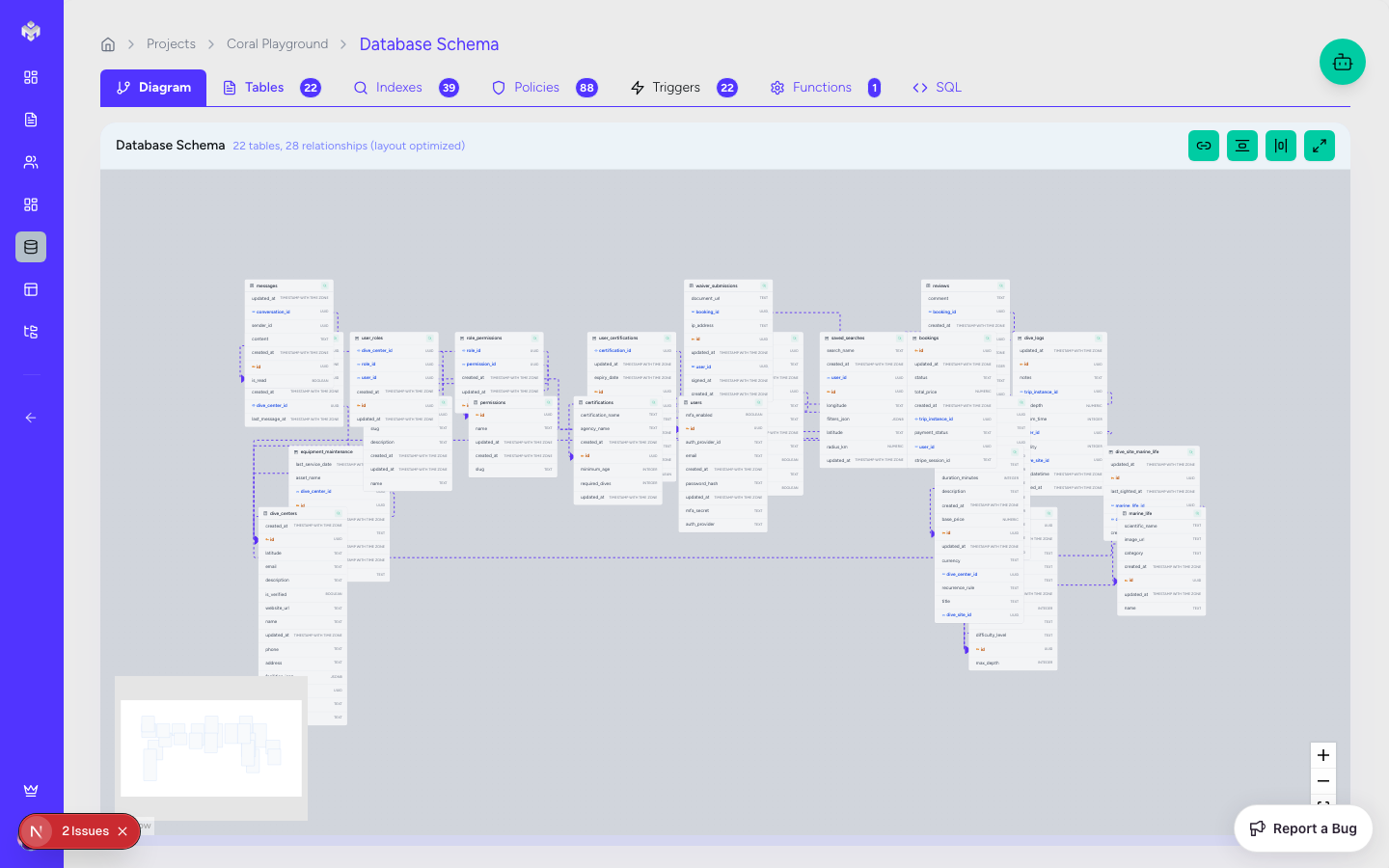
Accessing Schema Section
Navigation
Navigate to the project sidebar.
Click the "Schema" tab.
If no schema exists, you'll see a primary "Generate Schema" button.
Page Layout
Header Section: Contains the "Generate Schema" button and various export options (SQL, JSON, Image).
Tabbed Interface: Offers multiple views of your database, from visual diagrams to raw SQL.
Action Sidebar: Context-sensitive actions for adding or editing tables and relationships.
Generating Database Schema
The Generation Process
Click the "Generate Schema" button.
The AI subagent performs a deep analysis of your Features, User Stories, and Acceptance Criteria.
It identifies all required data entities and determines optimal data types and constraints.
It designs the relationships (one-to-many, many-to-many) required to fulfill the user stories.
The result is a complete, deployable PostgreSQL schema.
What Gets Generated
Normalized Tables: Tables designed to minimize redundancy.
Primary & Foreign Keys: Relationships mapped across all entities.
Indexes: Performance optimizations for common search fields.
Constraints: Data integrity rules (e.g.,
NOT NULL,UNIQUE,CHECK).RLS Policies: Row Level Security policies for secure multi-tenant access.
Audit Fields: Standard fields like
id,created_at, andupdated_atfor every table.
Schema Exploration (The 6 Tabs)
Vibemap provides six distinct ways to interact with your data model.
1. Visual Schema (ERD)
An interactive React Flow diagram.
Nodes: Represent tables with column lists.
Lines: Represent foreign key relationships.
Interaction: Drag tables to organize the view; zoom in/out for large schemas.
2. Tables Overview
A detailed list of every table in the database.
Search & Filter: Find tables by name or column type.
Properties: View column types, default values, and nullable status.
3. Relationships Matrix
A focused view of how tables connect.
Cardinality: See at a glance if a relationship is 1:1, 1:N, or N:M.
Cascade Rules: View
ON DELETEandON UPDATEbehaviors.
4. SQL Script
The raw, production-ready PostgreSQL script.
Syntax Highlighting: Easily read the DDL.
Copy/Download: One-click buttons to get the script into your IDE.
5. Functions & Triggers
Database-level logic generated by the AI.
Automatic Triggers: e.g., for updating the
updated_attimestamp.Custom Functions: Complex business logic identified during analysis.
6. Policies & Security
A dedicated view for Row Level Security (RLS).
Policy Rules: "Users can only read their own data", "Admins can update all records", etc.
Security Audit: Ensure no table is left without a protective policy.
Manual Schema Management
Adding and Editing
While the AI provides a comprehensive start, you can manually refine the design:
Add Table: Manually define a table name and its initial columns.
Add Column: Add specific fields (e.g., a custom
stripe_customer_idstring).Edit Column: Change data types or toggle "Nullable/Required" status.
CRUD Operations
Delete Table: Removing a table will alert you if there are dependent foreign keys.
Drop Column: Clean up your schema by removing unused fields.
Modify Relationships: Change how tables connect to better suit your changing requirements.
Schema Validation & Best Practices
Vibemap applies several "Golden Rules" during generation:
Normalization: Generally follows 3rd Normal Form (3NF).
Security First: No tables are created without RLS policies enabled by default.
Naming Conventions: Consistent snake_case naming for tables and columns.
Performance: Automatic index generation for foreign keys and common search filters.
Next Steps
Once your schema is finalized, you can proceed to UI Generation. The system will use your database structure to generate corresponding form fields and data display components in the frontend.
Last updated
Was this helpful?